

The StreamlineLS platform now enables you to connect your QuickBooks account for exporting transactions. At this time, this feature is only available for select users. If you’d like to use this feature, please reach out to [email protected] and we can enable this for your account.
Overview
This feature works by connecting your QuickBooks online companies to StreamlineLS. Once a company is connected, you can assign the properties you have in StreamlineLS to the QuickBooks company. Once transactions have been processed on our system, you’ll be able to sync them to your QuickBooks account, into the company that this property belongs to.
Enabling the Feature and Connecting to a QuickBooks Company
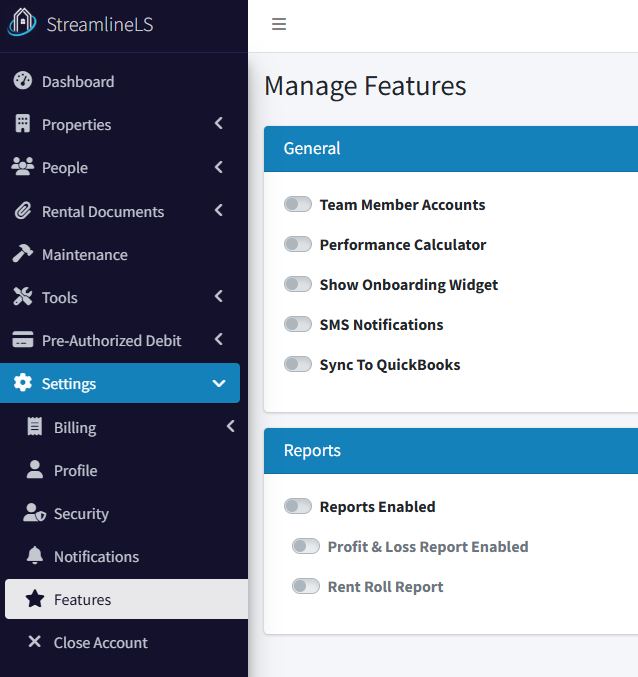
On the left navigation, go to Settings / Features and enable Sync to QuickBooks:
This will bring up the following dialog:
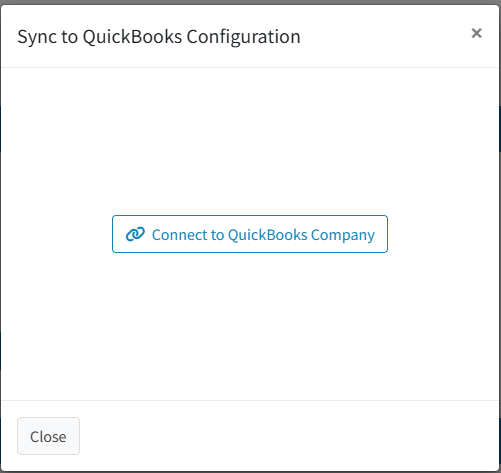
Click the Connect to QuickBooks Company button.
This will redirect you to log into QuickBooks online:
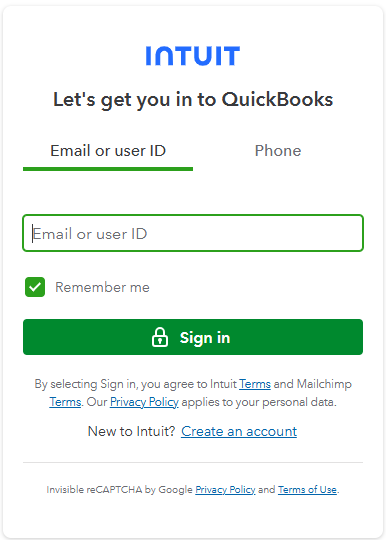
Sign in using your regular credentials.
Next, you’ll be presented with a list of all of your QuickBooks companies. We can only connect one at a time, so choose the first one you’d like to connect, then click the Next button.
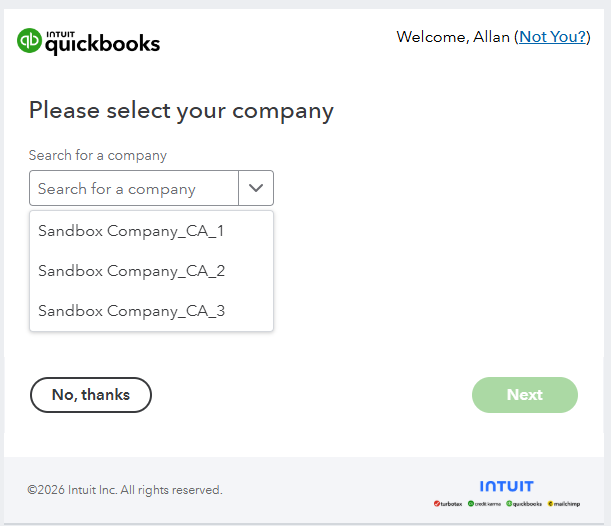
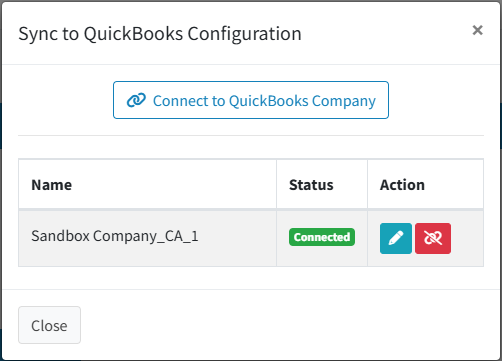
At this point, you will be redirected back to StreamlineLS, and you’ll see that your QuickBooks company is now connected.
Assigning a Property to a QuickBooks Company
In the QuickBooks configuration dialog (the one presented at the end of the last step), click the pencil icon.
This will bring up a dialog where you can assign any properties that belong to this company.
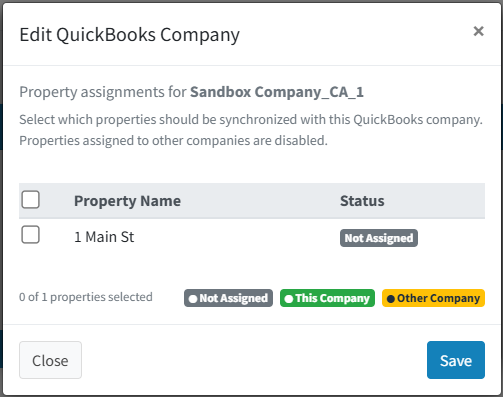
Choose any properties that belong to this company and click the save button.
Exporting Transactions
For this first release, transactions must be exported manually. The reason for this is to make sure that we’re sending the transactions to the correct places in your QuickBooks account. As we further refine this feature, we will enable automatic transaction syncing (transactions are synched from StreamlineLS to QuickBooks, but not the other way around).
Navigate to the Pre-Authorized Debit / Past Transactions page.
Under the Action menu, if a transaction can be exported to QuickBooks, you’ll see an option to do it. Once exported, you’ll be able to find the transaction in the accounts receivable QuickBooks account. If a customer does not exist for this tenant, a new customer is added.
Transactions can be exported as long as they have completed and belong to a tenant in one of the properties that you assigned to the QuickBooks company.