
The StreamlineLS platform now allows you to send DocuSign documents to tenants or prospects so that they can sign, using eSignatures.
As a note, at this time this feature is only available for select users. If you’d like to use this feature, please reach out to [email protected] and we can enable this on your account.
Overview
This feature works by having you (the landlord or property manager) upload a PDF file of a document that you’d like to convert to use eSignatures. This will alert our team to get in contact with you to ensure that the eSignature document is set up correctly.
Once that’s done, this document will be available for you to send to prospects and tenants. The initial configuration only needs to happen once.
Uploading a File and Setting it to be eSignature
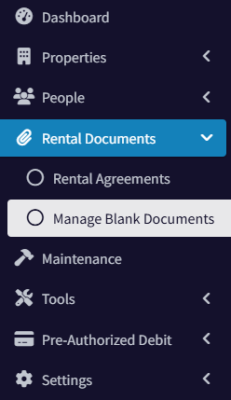
Navigate to Rental Documents / Manage Blank Documents.
Click the Upload button and select a file from your computer to upload. At this time, only PDFs are permitted. If you need help converting a file to PDF, please contact [email protected].
Next, change the Document Type to be eSignature. There is a confirmation dialog that notifies you that this is a premium feature. For current pricing, please see our pricing page.
Once the document has been changed to eSignature, a notification goes to our team, and we will set up the template in DocuSign and on our end. You will be notified when the document is ready for use. Expect one or two business days.
Sending an eSignature Document to a Prospect
In the left navigation, go to People / Prospects and create at least one prospect.
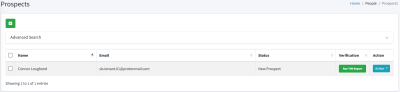
Once you have at least one prospect, under the prospect’s action menu, choose Documents. The Documents dialog will open.
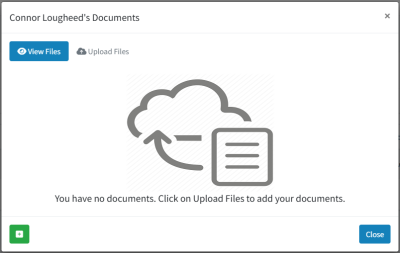
Click the green + button on the bottom left. This allows you to add documents from your document repository.
Select the eSignature document, then click Attach.
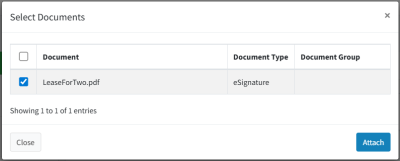
Now, the eSignature document has been added to this prospect’s documents.
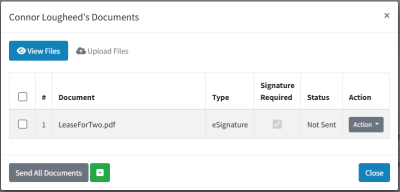
To send the document to the prospect, either click the Send All Documents button, or the Send eSignature Document button under the action menu.
This will bring up the parameters dialog.
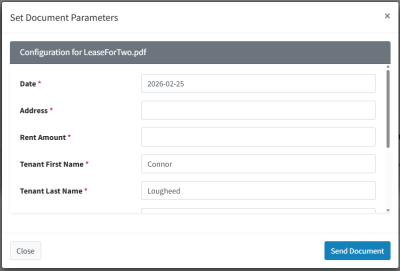
The exact parameters that are displayed will depend on your specific document. In this example, I’m send a lease, so we have a date, address, rent amount, tenant first/last names, etc.
When the document was converted to an eSignature document, we (at StreamlineLS) set all these parameters and determine which are required and which aren’t.
Fill in all required parameters, then click the Send Document button.
DocuSign will send an email request for you to sign first. This way you can confirm that all the information looks correct.
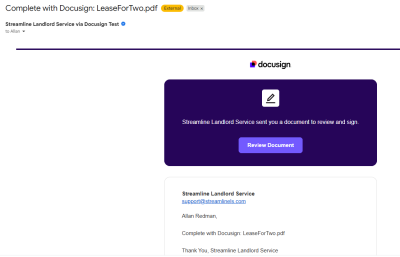
If something doesn’t look right, you can cancel the eSignature back in the prospect documents dialog, under the Action menu.
Once you’ve signed the document, an email notification is sent to the prospect.
Once the prospect signs it, you’ll receive a notification.
The signed document is now available for you to download through the prospect documents dialog. If you later convert this prospect to a tenant, the signed document will come with them.
Sending an eSignature Document to a Tenant
Sending an eSignature document one or more tenants follows the same process as to a prospect, only we send it from the Rental Agreement Documents page instead.
If you have an existing Tenant who is on a Rental Agreement, navigate to the Rental Agreement Documents page. To get here, go to Rental Documents / Rental Agreements on the left navigation, then in the Action menu for the Rental Agreement, click the Rental Documents option.
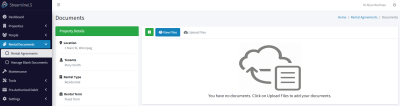
Again, click the green plus icon and attach the eSignature document.
Now the document has been added to the Rental Agreement Documents.
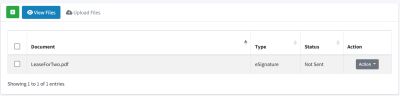
To send this out for signature, under the Action menu choose Send eSignature Document.
This will show the parameters dialog. Fill in the parameters how you’d like, then click the Send button.
The document will first be sent to you for confirmation that all of the parameters look correct.
Once you sign the document, it’ll be sent to the tenant.
Sending to Multiple Tenants
Our system has the ability to have two Tenants sign an eSignature document. This is often necessary in the case of a lease.
Let us know when we’re setting up the eSignature document for you that you think you may want two people signing it. The document can handle one or two tenants, so we don’t need a separate document for a single Tenant.
But if it was set up for two tenants, you’ll notice in the parameters dialog there is an option for the second tenant’s information. Ensure their name and email address is entered.
Once the first tenant finishes signing, an email will be sent to the second tenant. Once the second tenant has signed, you’ll receive a notification from our platform.
You can download the signed document from either the email notification sent to you from DocuSign or through our platform on the Rental Agreement Documents page.
Summary
DocuSign integration is a powerful feature, especially when you’re managing multiple units and don’t want to spend time chasing people for signatures. They allow for a modern feel and for signatures to be acquired with minimal friction.
We just need to go through a few steps to get each document template set up for you.
Streamline Landlord Service is here to help you streamline your business. Please don’t hesitate to reach out to us at [email protected] and we can get this enabled on your account.